At Clevertouch, we know how much educators all over the world value their free access to our presentation and whiteboarding software: LYNX Whiteboard. As such, we are always looking for ways to add innovative tools and enhance every user’s experience. Over the last few years, a range of AI features were introduced, via subscription to LYNX Pro. This year, our latest update includes a range of free new features – including bespoke animations and redesigned menus for more streamlined content creation. Read on to discover more, as we detail all of the most recent changes.
Dashboard Shortcuts
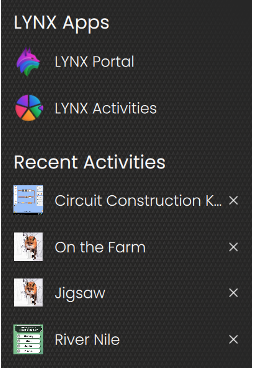
When opening the LYNX app, the Dashboard can take you straight to your most recent documents. Alternatively, you can quickly access files on any of your connected cloud drives. Yet many people miss the web-related shortcuts on the right of the page.
Not only can you access the LYNX Portal – where you can access handy tutorials and manage your account – but also the LYNX Activities area. Here you will find dozens of online simulations, games and apps that are free to all users. Even better, your most Recent Activities are displayed to facilitate immediate access to your prepared online content.
Optimal Options

Our Options menus now offer even more opportunities to personalise your user experience of LYNX. Check them out…
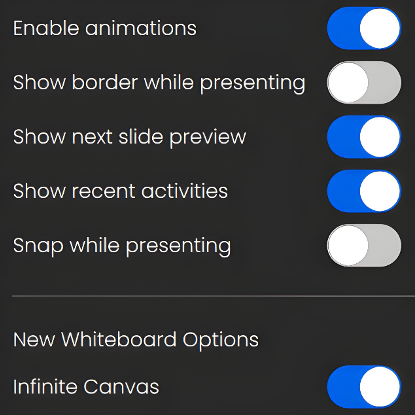
In the General tab, you can now use a range of toggles to customise the app for your convenience. When presenting, you can make several choices. You can decide if you want a next slide preview window or a border around each slide. The snap option dictates how movable objects behave in relation to any background grid or other objects.
You can also toggle the infinity canvas for new whiteboards and decide if you want to disable any animations you may have set.
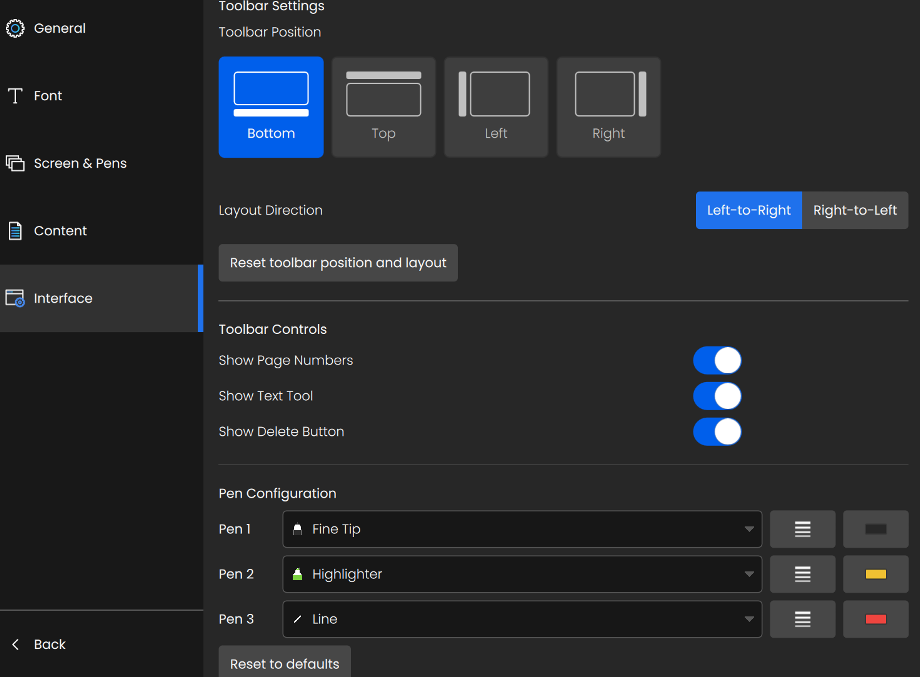
The new Interface tab provides a host of features. Many users asked us for the ability to reposition the main toolbar according to personal preference. Now, if you’d like to place the toolbar out of reach of young children or you like to stand to one particular side of your Clevertouch screen, you can place it wherever you prefer in an instant. You can also choose to hide some of the functionality, such as the delete button or page numbers.
Another popular request was the ability to customise the pen choices when working at the touchscreen. This can now be done in the Pen Configuration section. If you share the app with other users, you can save these profiles for each user.
Mobile Menus
When editing your files, two of the most valuable areas are the Page Menu and the Media menus. However, both used to pop up in a fixed position, obstructing the view of the left-hand side of each slide. As shown in the images below, you can now move and resize these pop-up menus as you wish.
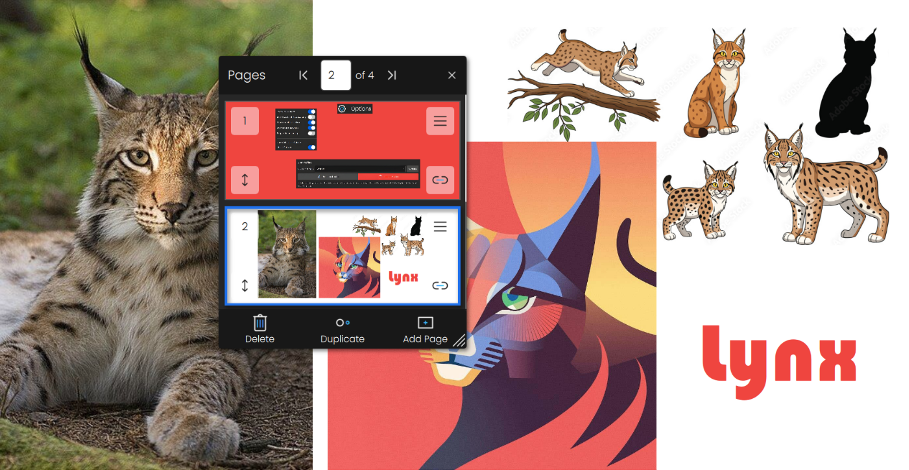
See three of the possible resize options below:
.png)
Image Options
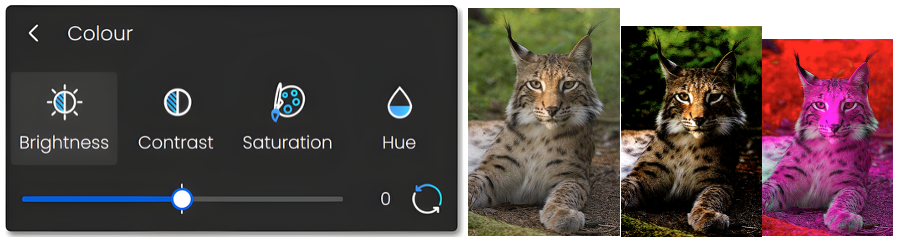
We have increased the number of editing options for any image, allowing users to crop, adjust the colour and remove backgrounds with greater functionality.
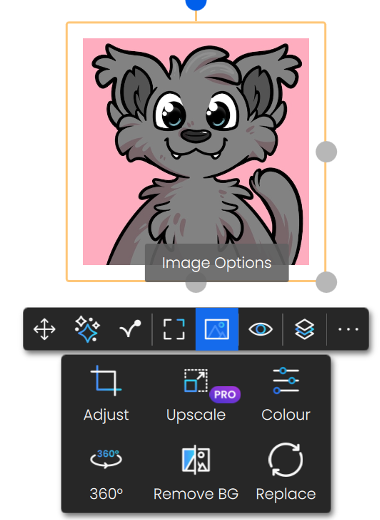
These functions are available from the floating toolbar that appears underneath any selected item. Users can still transform each image into a panoramic mode (as shown below). LYNX Pro users can use the Upscale tool to improve the pixelation of grainy images.

The colour tools can create a range of effects.
Interactive Interface
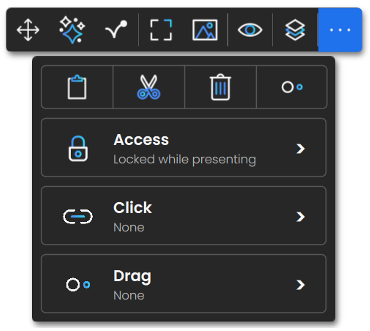
The tools for customising how things behave when in Presentation mode have been reorganised – adding exciting new abilities. For example, one item can be given two different functions, depending on whether you intend to click and / or drag it.
Interactive features such as replicator and sound buttons are now split between three main areas.
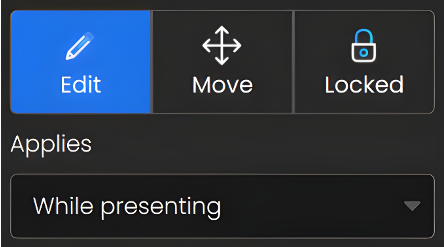
The Access tools give you three main options for any item – and these options can be set just while presenting or for always. If locked, an item can’t be moved or resized. That’s handy if there are items you don’t want others messing with. Edit means items can be moved and resized freely. Move is a new option requested by many teachers of younger children. With move selected, items can be slid around the screen when dragged, but they won’t accidentally resize or rotate
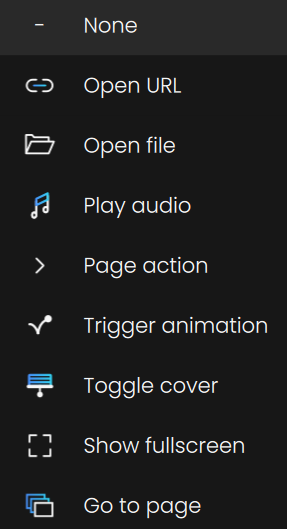
The Click options have also been increased. Any item can become a hyperlink to a website (Open URL), saved content (Open file) or another page using either Page action or Go to page. Making sound buttons with saved sound files is now even easier with the Play audio option. Individual items can also be hidden using Toggle cover or be set so that you zoom into them using Show fullscreen.
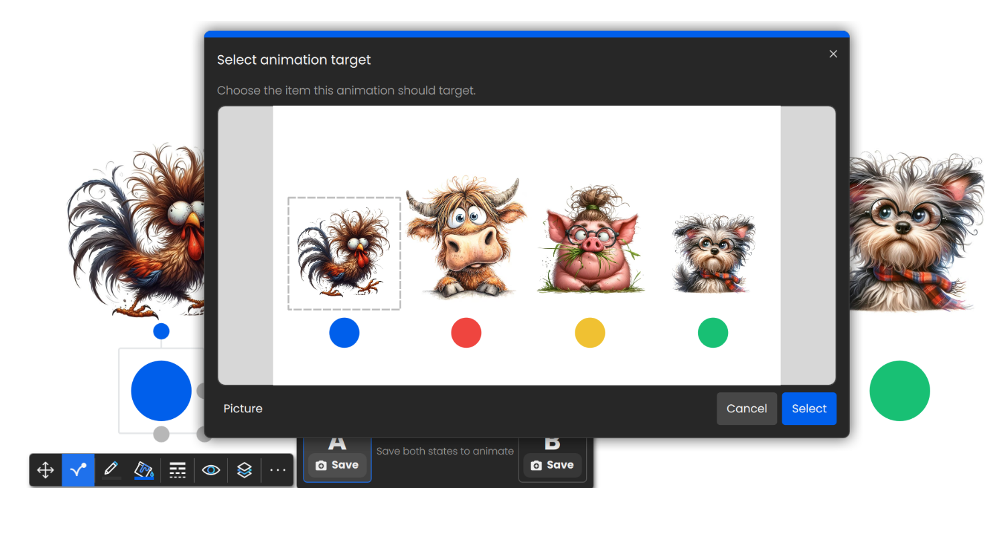
Trigger animation is a new feature linked to the last section of this article (see Let’s Animate!). It can turn any item into an action button for any preset animation effects.
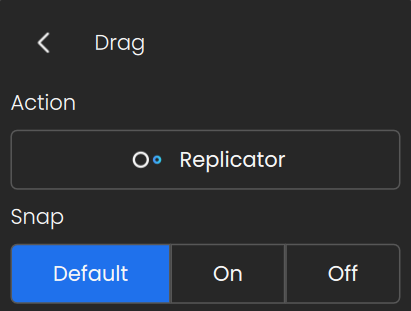
The Drag menu allows you turn any item into a Replicator for instant cloning. You can also choose how items behave as you move them around the screen, using the Snap options.
Using these reorganised tools means that you could have an image of a chicken that clucks when you tap on it and moves around when you drag it. Farmyard play scene anyone?

Let’s Animate!
Previously, we added the AI Assistant to the floating toolbar. Now it’s the turn of Animation tools to take their place among our repertoire of features.
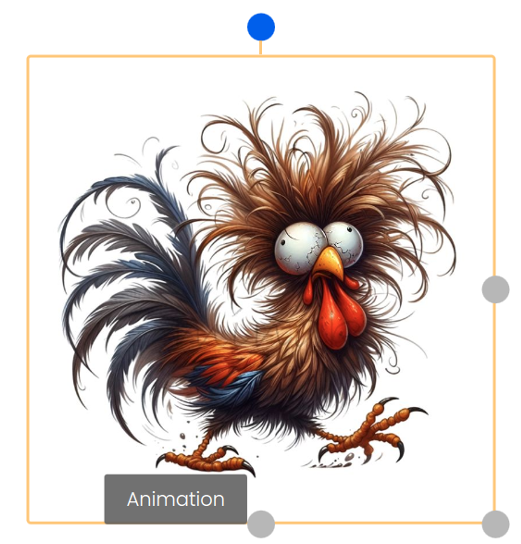
Any item can be programmed to give either itself or another targeted item an entrance, exit or bespoke repositioning. And all within an interface so simple that anyone can master it.
Now items can move across the page on their own. They can fade in or out, spin 360 degrees or swoop in from any direction. It’s even possible to create buttons that can trigger several animations, making it possible for items to take their places in sorting grids when teachers want to show the correct answers – as just one example of the many uses these new tools can offer.
If you and your colleagues want free training on any of these new tools, please don’t hesitate to contact us at www.clevertouch.com.